Purpose of this App
This is an app where adjusting the time of a specific city automatically changes the time of all other cities in sync.
It was developed with the goal of eliminating the cumbersome calculation of “What time will it be in the other country when it is 8:00 PM tomorrow in New York?” and allowing you to find the desired time with intuitive operations.
I hope you find it useful as a handy tool for scheduling with overseas business partners, adjusting contact times with family and loved ones living abroad, and more.
City Display Section

- City Name
- Country Name
- Time difference from your current location (device’s time zone)
- Date
-
Time difference from UTC (Coordinated Universal Time) for that city
*A changed color indicates Daylight Saving Time. - Time of that city
Adjusting the Time with the TimeBar
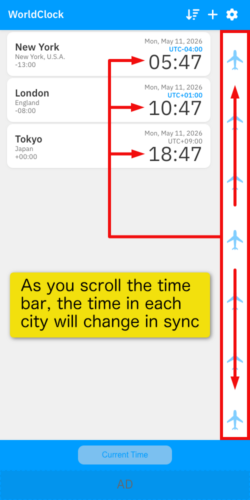
Scrolling the TimeBar on the right side of the screen changes the time of each city in sync.
- Upwards: Into the future
- Downwards: Into the past
By focusing on one city and changing it to your desired date and time, you can instantly see the date and time in other cities at that exact moment.
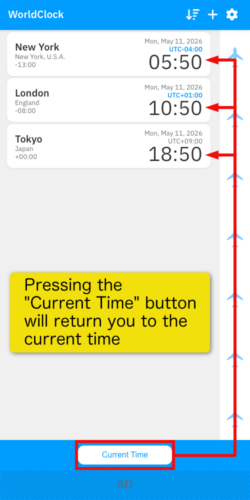
Pressing the “Current Time” button at the bottom of the screen returns the time of all cities to the present time.
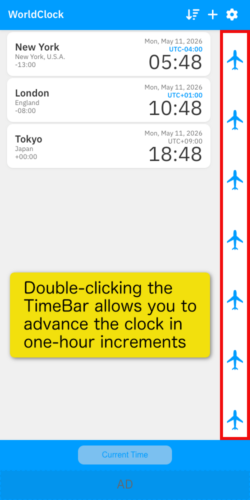
Double-clicking (or double-tapping on a smartphone) the TimeBar allows you to advance the clock in one-hour increments.
When set to one-hour increments, the TimeBar icon is displayed in a darker color.
Double-clicking the TimeBar again returns it to one-minute increments.
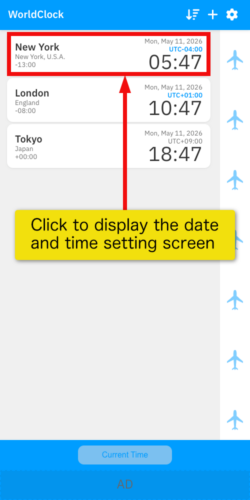
Specifying the Date and Time Directly
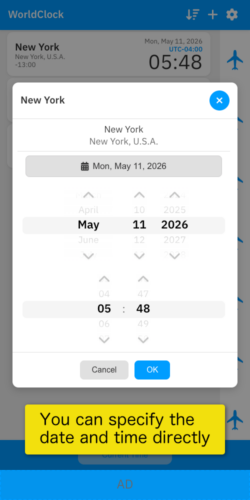
Clicking within a city’s area allows you to specify the date and time directly.
Deleting and Sorting Cities
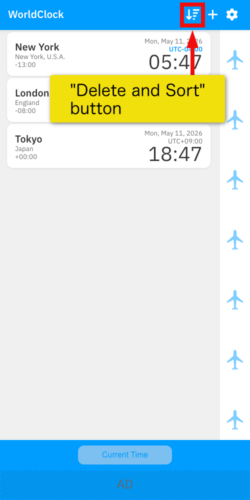
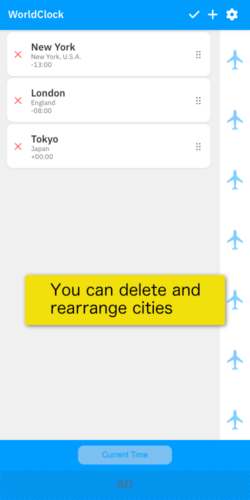
Pressing the “Delete and Sort” button in the upper right corner of the screen enters edit mode, allowing you to delete and rearrange cities.
Press the red “X” on the left to delete a city.
Drag the area with six dots on the right to rearrange the cities.
Press the “Checkmark” button to return to the original screen.
Adding a City
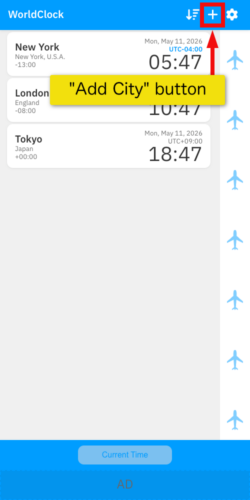
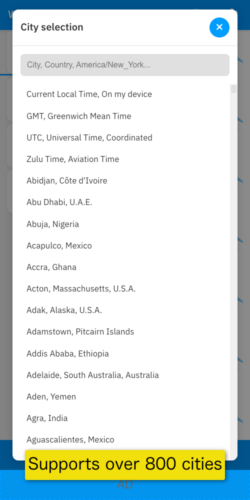
Pressing the “+” button in the upper right corner of the screen displays the city list. You can select a city directly from the list, or search by city or country name.
Editing a City
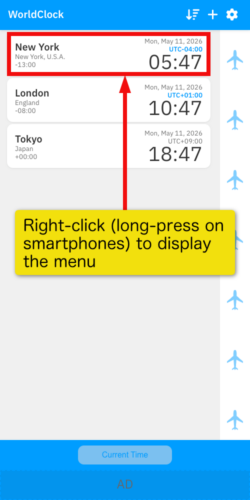
Right-clicking (or long-pressing on a smartphone) a city area displays a menu.
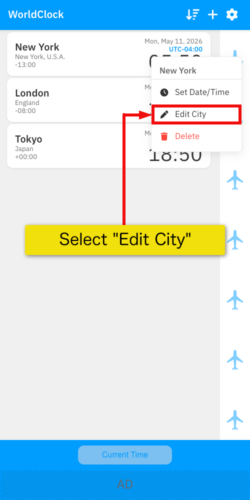
Selecting the “City Edit button” from the displayed menu allows you to edit the city.
Pressing the “Change City” button in the edit screen displays the city selection screen, allowing you to change the city by selecting the desired one.
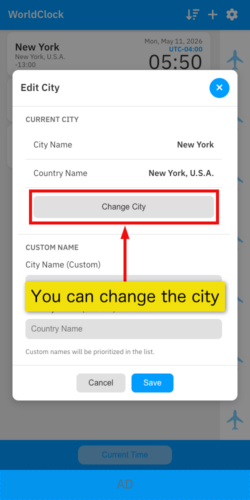
By entering text in the custom name section, you can change the city or country name to whatever you like.
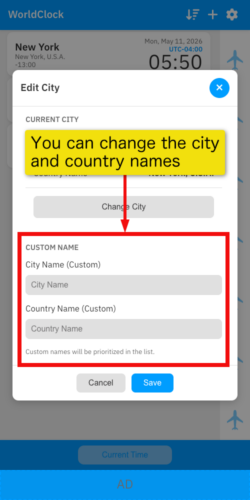
An indicator mark is displayed in front of cities that have a custom name set.

Displaying a Pinned City
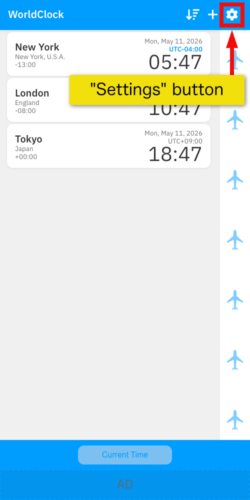
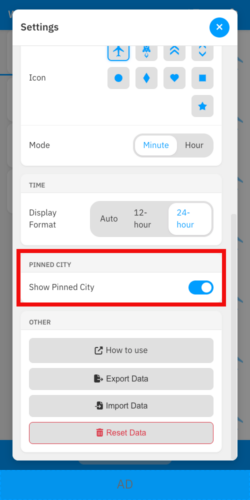
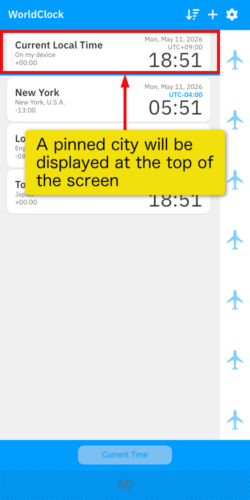
Turning ON “Show Pinned City” in the settings screen will display a single, pinned city at the top of the screen.
Just like other cities, you can specify the date and time directly, change the city, and set a custom name for the pinned city.
About Saved Data
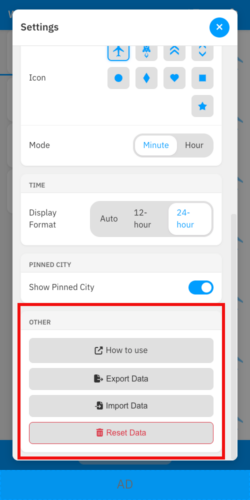
Settings, added cities, and custom names are saved in the browser’s local storage and will be restored on your next visit.
Because local storage data is saved individually for each user account, please use data export and import if you want to use the same data with a different account or browser.
You can also initialize the data.
About the Time Difference Data in “World Clock”
“World Clock” retrieves time difference data from the browser, so it may return incorrect times if the browser’s time zone information is outdated.
Frequently Asked Questions
Q: Is Daylight Saving Time applied automatically?
A: Yes, it is applied automatically.
No special operation is required when Daylight Saving Time begins (or ends).
Q: The time seems to be incorrect. What should I do?
A: “World Clock” displays the time based on the browser’s time difference data.
First, please update your browser to the latest version. If the issue persists, it might be a bug in the app.
In that case, we apologize for the inconvenience, but please contact us through the Randy Apps Contact Page.
Q: Is there a way to remove ads?
A: We apologize for not meeting your expectations, but there is no way to remove ads. Also, there are no plans to do so in the future.